
SSO ID Guide

Document Details Section: OTR FAQs

Common problems candidates face in the Document Details section of OTR — DigiLocker fetch issues, incorrect education records, verification statuses, and how to fix or edit them.

The Document Details section of OTR lets you fetch documents from DigiLocker or enter them manually. This page answers the most common questions candidates ask about fixing errors, understanding verification statuses, and using the edit facilities before applying for a recruitment.

DigiLocker and marksheet corrections

Incorrect marks or percentage fetched from DigiLocker

If a candidate's marksheet or educational details are appearing incorrectly through DigiLocker, the candidate must first contact the concerned Board/University and get the marksheet corrected. After correction, the candidate must update the correct marksheet in DigiLocker.

If the candidate is unable to get the marksheet or educational details corrected in DigiLocker by any means, the candidate may manually enter the correct details and upload the marksheet/certificate in the Document Details section of the recruitment portal.
Incorrect marks or percentage fetched from DigiLocker

Incorrect marksheets or details fetched from DigiLocker

If incorrect marksheets or academic details are being fetched from DigiLocker, the candidate should contact the concerned Board/DigiLocker authority to get the records corrected at source.

As the Recruitment Portal provides a manual entry facility, the candidate may enter the correct details manually and upload a scanned copy of the original marksheet for verification.

Candidates must ensure that the information submitted in the application form is accurate and consistent with their original documents.

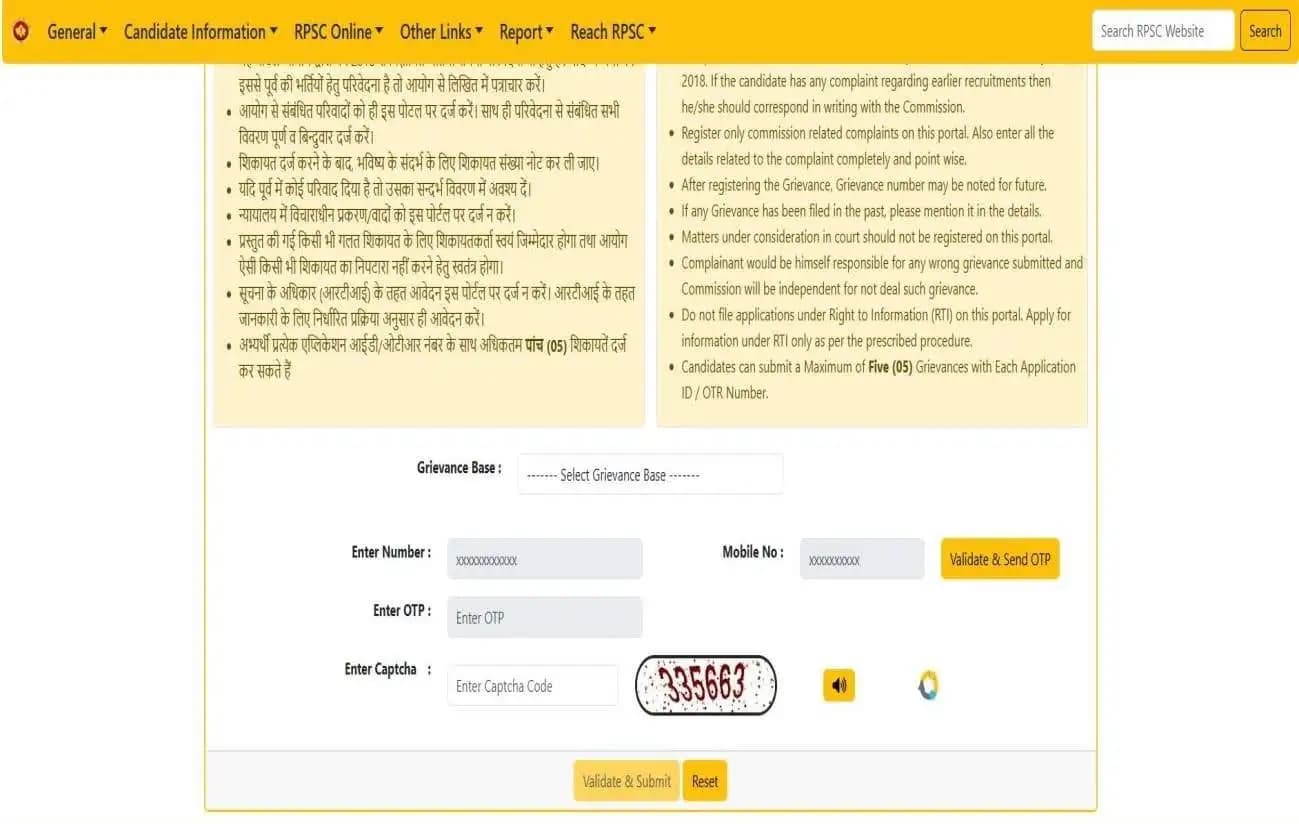
Grievance Module: https://rpsc.rajasthan.gov.in/grvlogin

Some DigiLocker documents not saved

If the candidate has fetched and saved only some documents from DigiLocker into the OTR Document Details section and the remaining documents were not selected or saved at that time, the candidate can again log in to DigiLocker and fetch the remaining documents. The system provides the option to retrieve and save additional documents in the OTR Document Details section later.

If any document is not available in DigiLocker, or if the document is incorrect or not updated, the candidate can manually upload the required document in the OTR Document Details section.

Education section issues

Subject or university/board name missing in the Education section

If the subject, university, board, or educational qualification name is not available in the Education section of the OTR Document Details page, the candidate should contact Rajasthan Public Service Commission (RPSC) or Rajasthan Staff Selection Board (RSSB).

The candidate may submit a request along with valid supporting documents (proof) through email to get the required subject / university / board / qualification name added to the system.

The candidate is advised to complete this process at least 3 days before the last date of the recruitment, so that there is no issue while filling out the application form and the form can be submitted on time.

For Rajasthan Public Service Commission (RPSC) related vigyapti and exam-related issues, contact: • Helpline Number: 0145-2635212 / 2635200 • Email ID: feedback.rpsc@rajasthan.gov.in

For Rajasthan Staff Selection Board (RSSB) related vigyapti and exam-related issues, contact: • Helpline Number: 0141-2722520 • Email ID: itcell.rssb@rajasthan.gov.in

Subject or university/board name missing in the Education section

Education status shows "Not Verified" or "Partially Verified"

After adding education details in the Education Section of the Document Details Page, the following statuses may appear. Candidates are allowed to fill the Application Form. No candidate is restricted from applying due to these statuses. However, all information saved by the candidate must be correct and accurate.

Meaning of status: • Not Verified: This status appears when the candidate has uploaded documents manually. • Partially Verified: This status appears when the candidate has saved documents using the DigiLocker / fetch facility but has entered some information manually. • Verified: This status appears when the candidate has saved documents completely using the DigiLocker / fetch facility.

Class 12 roll number entered instead of Class 10

If a candidate mistakenly enters the Class 12 roll number instead of the Class 10 roll number, the candidate can click on the Edit/Delete button to either modify the education details of the particular qualification or delete the education details and re-enter the correct information (One Time Edit Facility is allowed).

Please note that if the Edit/Delete option has already been used by the candidate (if One Time Edit is already used), then the candidate must approach RPSC through the following channels:

The candidate must submit the following documents:

  • A written application.
  • Payment receipt generated from the Payment for Offline Service section of the Recruitment Portal.

After verification of the request and documents, RPSC may allow the required education details to be edited from their end.

Saving and uploading documents

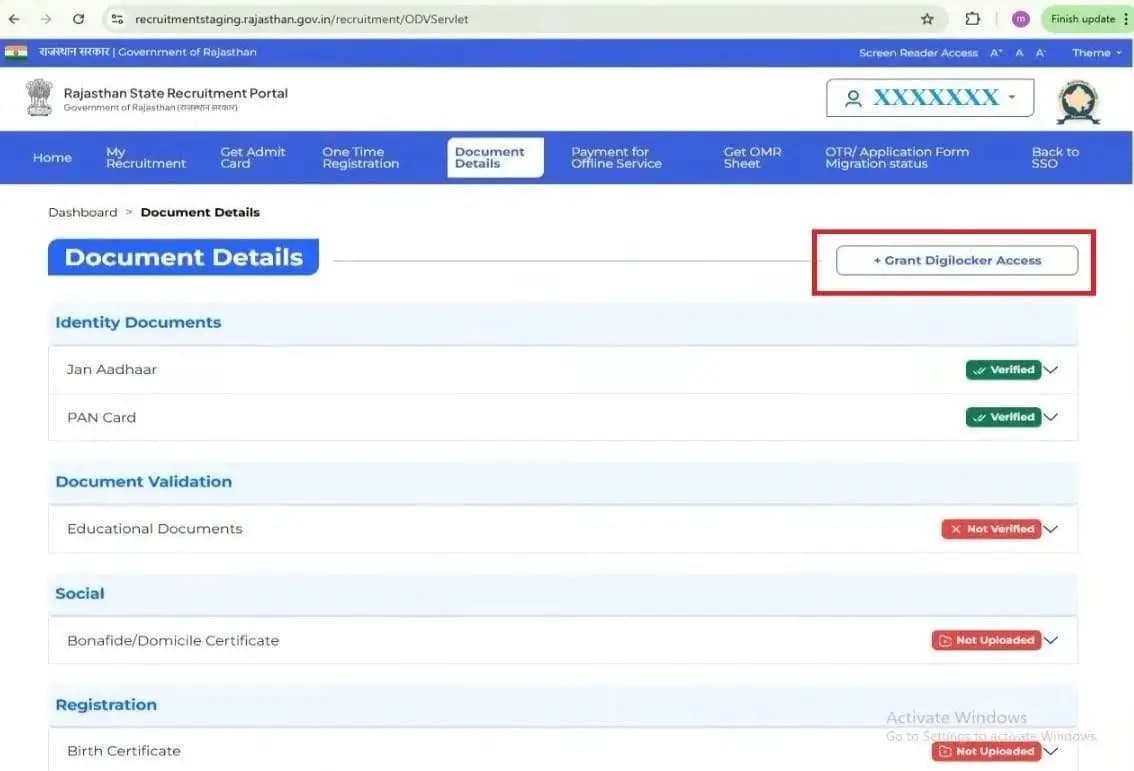
How to save documents in the Document Details section

A candidate can save documents by visiting the OTR Document Details section.

  • If the candidate's documents are uploaded on DigiLocker, they can fetch the documents from there and save them in the OTR Document Details section.
  • If the documents are not available on DigiLocker, the candidate can save them by entering the relevant document details / document number.
  • If, for any reason, the document is fetched from DigiLocker but cannot be saved, the candidate may upload the document manually.

Note: Documents related to the Specially Abled (Divyang) category cannot be uploaded manually.

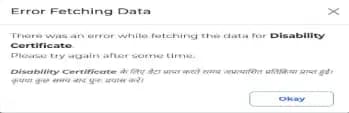
Server error while fetching the disability certificate

If a candidate is facing an issue while fetching data, the candidate should wait for some time and then try again to fetch the document.

Server error while fetching the disability certificate

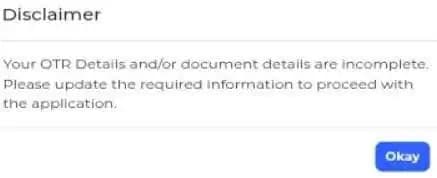
"OTR/document details incomplete" error despite uploads

If such a message is displayed to the candidate, then upon clicking the "OK" button, the candidate will be redirected to either the OTR section or the Document Details section. The candidate must fill in all the mandatory details in the respective section. Only after completing these required details will the candidate be able to proceed with filling the Application Form.

"OTR/document details incomplete" error despite uploads

Editing details after submitting the form

Adding new education details after submitting the form

If a candidate has already filled and submitted the application form and later adds new educational details in the Education section of the OTR Document Details page, the candidate can use the Edit Application Form facility provided by the concerned department to update the application form as per the latest education details available in OTR.

By using the Edit Application Form option, the updated education details from the OTR Education section can be reflected in the application form. Generally, this will not cause any issue in further sections.

However, if the candidate has already used the edit facility once, or if the concerned department (such as Rajasthan Public Service Commission or Rajasthan Staff Selection Board) has not provided the option to update education details during the application edit period, then the candidate must contact the respective department to resolve the issue.

Updating details after submission, before Document Verification

If a candidate updates any information in the application form after submission, and such updates are allowed by the concerned department through an official edit facility, then it is valid and acceptable, as it is done according to the instructions issued by the department.

However, if a candidate wants to make changes in any details that are not permitted by the department, then the candidate must contact the concerned department (such as Rajasthan Public Service Commission or Rajasthan Staff Selection Board) for further guidance.

If the candidate wants to obtain any information related to the recruitment process, joining process, or any other recruitment-related matter, they should directly contact the concerned department for accurate information and clarification.

Caste and domicile certificates

Editing Caste or Bonafide/Domicile certificate details

Currently, there is no provision to edit or delete documents that have been fetched and saved by the candidate. However, the candidate can add multiple certificates in the respective section if required.

Wrong manually-uploaded domicile certificate that cannot be re-uploaded

If the manually uploaded domicile certificate contains incorrect details and the candidate is unable to upload the corrected domicile certificate again, then the candidate may upload the correct document under the "Other Certificate" section.

Ready to update your Document Details?

Fetch or manually add your education and identity documents on the official Rajasthan Recruitment Portal.